Settings
Settings is where you tune the constitutional thresholds, choose how remediation runs, wire up notifications and remote alerting, point the agents at an LLM endpoint, edit system prompts, and manage your account. Some tabs are admin-only.
What you see
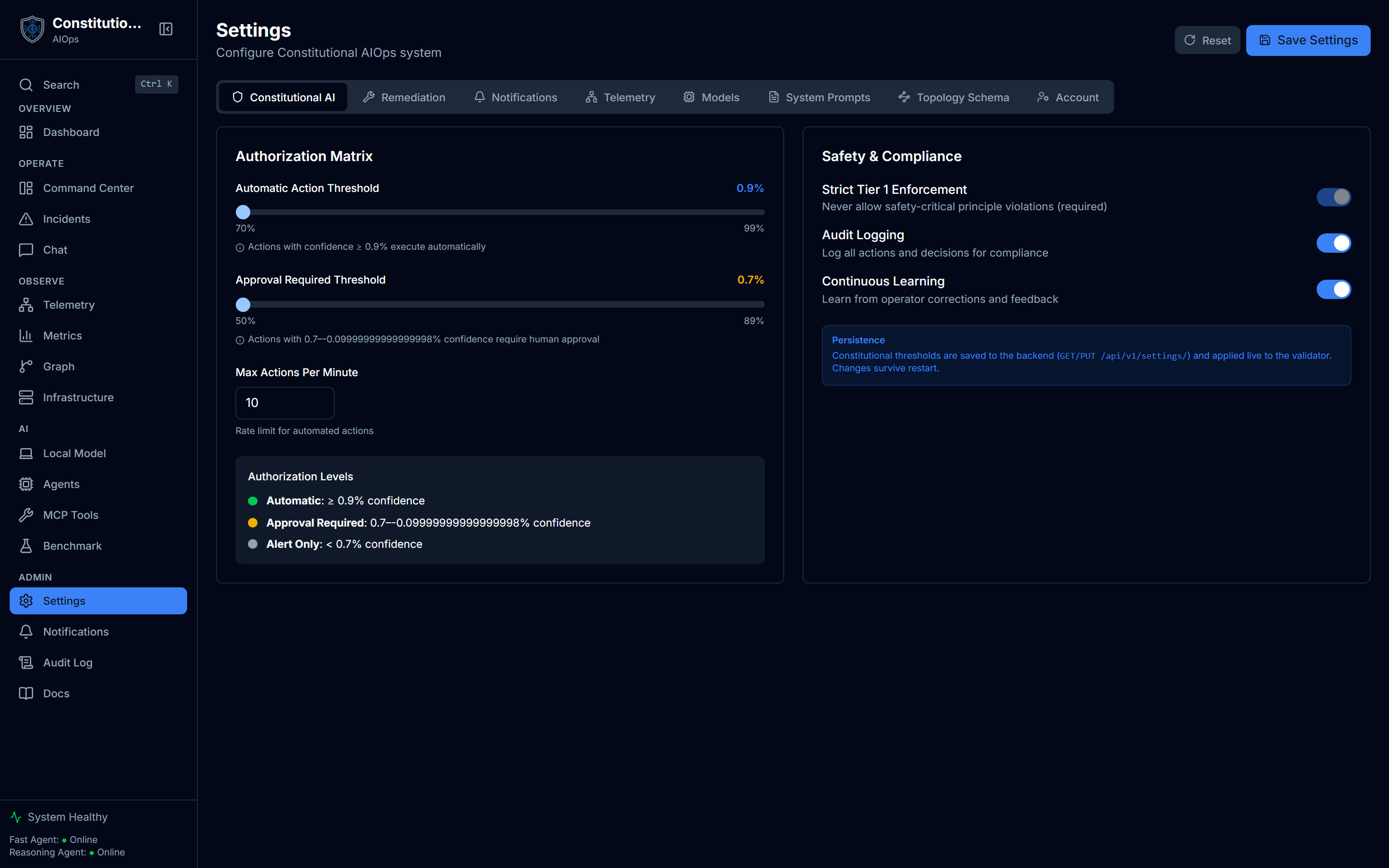
- Eight tabs: Constitutional AI, Remediation, Notifications, Telemetry, Models, System Prompts, Topology Schema, Account. Non-admins only see six: System Prompts and Topology Schema are hidden for them.
- Save Settings and Reset buttons in the header, plus a Setup guide link back to the onboarding wizard (hidden in demo mode).
- A save-error banner if the backend is unreachable, telling you changes are shown in the UI but not persisted.
How to use it
- Pick a tab. Each one loads and saves independently except Constitutional AI, Remediation, Notifications, and Telemetry, which share one Save Settings button and one persisted settings object (
GET/PUT /api/v1/settings/). - Adjust a setting, then click Save Settings for the four shared tabs, or use the tab's own save button (Models, System Prompts, Account sections each save themselves).
- Reset to defaults with the header Reset button, which calls the backend's reset endpoint and falls back to local defaults if the backend is unreachable.
Constitutional AI
Two cards: an authorization matrix and safety/compliance toggles.
- Automatic Action Threshold (70-99%) and Approval Required Threshold (50-89%) sliders define three confidence bands: at or above the automatic threshold, actions execute on their own; between the two thresholds, a human must approve; below the approval threshold, the system only alerts.
- Max Actions Per Minute rate-limits automated actions.
- Strict Tier 1 Enforcement is always on and cannot be turned off in the UI: it never allows a safety-critical principle violation.
- Audit Logging and Continuous Learning toggles.
These thresholds are saved to the backend and applied live to the validator; changes survive a restart.
Remediation
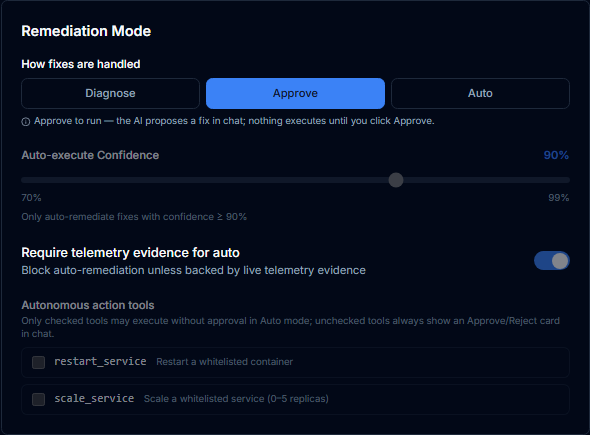
The mode selector reads back what each choice means as you pick it, so the line under the buttons changes with the mode. The Auto-execute Confidence slider and the autonomous action tools only bite in Auto mode. Left unchecked, restart_service and scale_service always route through an Approve or Reject card in chat no matter which mode is set.
- A three-way mode selector: Diagnose (investigates and explains, never proposes or runs a fix), Approve (proposes a fix in chat, nothing executes until you click Approve), and Auto (allowlisted, high-confidence fixes execute automatically once they pass the constitution; everything else still asks for approval).
- Auto-execute Confidence slider (70-99%), only meaningful in Auto mode.
- Require telemetry evidence for auto, a toggle that blocks auto-remediation unless it is backed by live telemetry evidence.
- Autonomous action tools: a checklist of
restart_serviceandscale_service. Only checked tools may run without approval in Auto mode; unchecked ones always show an Approve/Reject card in chat regardless of mode. - t3 Demo Agent URL, the base URL of the demo agent used by the Infrastructure chaos panel.
Notifications
- Channel toggles: Email, Slack, and Webhook. Turning on Webhook reveals a URL field, a minimum-severity selector (info/warning/error/critical), and an optional signing secret. With a secret set, each delivery carries an
X-AIOPS-Signature: sha256=…HMAC header. - Send test (admin only): fires a real test delivery to the configured webhook URL and shows whether it succeeded.
- Notification Events: separate toggles for critical incidents, pending approvals, and incident resolution.
- Remote alerting (admin only): forwards fired alerts at or above a chosen severity to a Telegram chat and/or a Matrix room.
- Telegram needs a chat ID and a bot token (from @BotFather); it also has an Inbound ChatOps toggle that lets people message the bot to query the system, with replies going back to that chat. Inbound needs a bot token to actually receive and reply; without one it is a soft warning, not a save-blocker. When inbound is on, the card shows the webhook path (
/telegram/<routing-id>) and whether a webhook secret is set. - Matrix needs a homeserver URL, room ID, and access token.
- Both channels have their own Send test button that tests the last saved configuration, so save before testing an edit.
- Bot tokens and access tokens are write-only: the field shows "(set)" rather than the value, blank keeps the stored secret, and a Remove token link clears it.
- Telegram needs a chat ID and a bot token (from @BotFather); it also has an Inbound ChatOps toggle that lets people message the bot to query the system, with replies going back to that chat. Inbound needs a bot token to actually receive and reply; without one it is a soft warning, not a save-blocker. When inbound is on, the card shows the webhook path (
Channel toggles and event preferences persist via /api/v1/settings/. Webhook delivery is live server-side once enabled; email and Slack delivery still need environment-variable configuration on the server.
Telemetry
- LGTM stack toggles: Loki, Prometheus, and Tempo, each with its own endpoint URL field when enabled.
- Data Retention in days (7-365).
- Local source (no LGTM required): a separate card, independent of the main save cycle, for the Docker-socket fallback. It reads logs and live CPU/memory metrics straight from the host's Docker socket, and only activates when Loki/Prometheus return nothing, so it never shadows a real observability stack. It has its own Test connection button.
Telemetry settings persist via /api/v1/settings/; URL or retention changes take effect on the next backend restart or collector reload.
Models and endpoints
Two cards: Serving Mode (only for local engines) and LLM Endpoints.

The Serving Mode card marks the live mode with an active badge and explains the swap plainly: the toggle writes a request that a host-side watcher runs via a swap script, since the backend has no Docker access of its own. Both modes share the same data stores, so a swap migrates nothing.
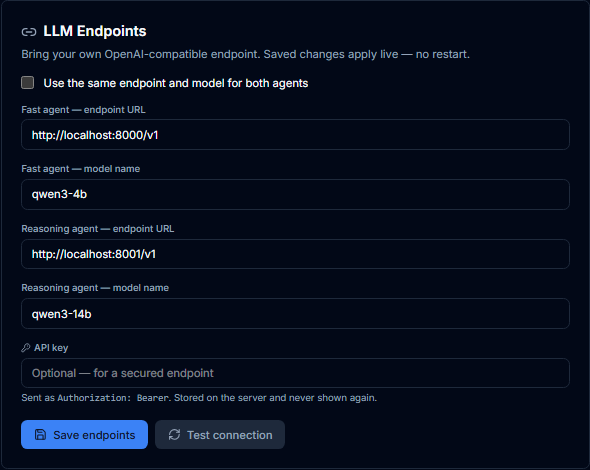
The LLM Endpoints card is the bring-your-own configuration. Each agent takes a URL and a model name, the checkbox reuses one endpoint for both, and the API key is optional and write-only. This is the same card a self-host admin and a per-user tenant both use for their own endpoint.
- Serving Mode only renders when the fast agent's endpoint resolves to
localhost/127.0.0.1, since remote or bring-your-own endpoints have no local engines to swap. It toggles between Mode 1 (dedicated Qwen3-4B + Qwen3-14B engines, the frozen research configuration) and Mode 2 (a single engine serving both roles via an overlay). Swapping asks for confirmation, then restarts the engines, taking chat and analysis down for roughly 3-5 minutes while a host-side watcher runs the swap script. Data stores are shared by both modes, so nothing is migrated or lost. - LLM Endpoints is the bring-your-own OpenAI-compatible configuration: a URL and model name per agent, with a checkbox to use the same endpoint and model for both. This is the same field a self-hosted admin uses and a per-user tenant uses for their own key: a regular user edits and validates their own endpoint here (by using chat), while only an admin sees the Test connection button, which probes the box's global endpoint.
- API key is optional, write-only (shown as "(set)" once stored, never redisplayed), sent as
Authorization: Bearer, and a Remove key link clears it. - Live Status shows each agent's online/offline state from the periodic health probe, plus reachable/unreachable from an on-demand connection test.
- Graph Memory shows whether Neo4j is connected (persistent episodic memory and dependency graphs) or the platform is using its built-in episode store with similarity search. On the lite tier that built-in store is
AIOPS_GRAPH_BACKEND=embedded, a persistent SQLite store whose episodes survive a restart; onlyAIOPS_GRAPH_BACKEND=memoryis genuinely ephemeral.
Saved endpoint changes apply live, with no restart required.
System Prompts (admin only)
Lets an admin view and edit the Fast Agent and Reasoning Agent system prompts, with Save and Reset per prompt. A save only reports success on a genuine 2xx: the backend applies the edit to the live agent and persists it, and a failure surfaces as a visible error banner rather than a silent false-success, so the editor stays open and your text is not lost.
Topology Schema (admin only)
An admin-only editor for the platform topology schema, including LLM-generated topology. Its mutations are admin-only for the same reason as System Prompts (SEC-004).
Account
- AI insight widgets: a per-user opt-in toggle. The dashboard's insight widgets stay no-LLM by default; enabling this adds an on-demand Explain button that runs your own configured endpoint and counts against a daily token budget. The UI is explicit that these explanations are model-generated hypotheses, not measured telemetry. Shown even when in-app authentication is off, since the synthetic self-host admin is exactly who would toggle it.
- Your account: username, role, and session controls (log out, or log out of all devices).
- Change password: requires the current password, a new password at least 10 characters and different from both the username and the current password, plus confirmation.
- Access tokens: self-service personal access tokens for the REST API and SDK, sent as
Authorization: Bearer <token>. The secret is shown once at creation; only its hash is stored server-side afterward, so a token can be revoked but never re-read. Tokens can have no expiry or expire in 30/90/365 days. - Users (admin only): create accounts, reset another user's password, or delete a user. You cannot delete your own account from this list.
Related
- Guide: Bring your own endpoint walks through the Models tab in more depth.
- Guide: Safety explains the constitutional thresholds configured here.
- Agent Hub shows the live effect of the endpoint you configure in Models.
- MCP tools shows the same action-tool gate that Remediation's autonomous-tools allowlist feeds into.